 |    | |
Home > Online Help > Video Converter > MP4 Converter
This tutorial explains how easily can convert your WEBM files to MP4 format with just couple of clicks.
There is a simple solution for converting and playing MP4 video formats: just download Program4Pc Video Converter, a convenient video conversion application for Windows, and change the format of your videos to MP4. See how easy it is with this step-by-step guide.
Step 1: Install Program4Pc WEBM to MP4 Converter
Download Now
How to Convert WEBM to MP4
This tutorial explains how easily can convert your WEBM files to MP4 format with just couple of clicks.
There is a simple solution for converting and playing MP4 video formats: just download Program4Pc Video Converter, a convenient video conversion application for Windows, and change the format of your videos to MP4. See how easy it is with this step-by-step guide.
Step 1: Install Program4Pc WEBM to MP4 Converter
Download Now





Step 2: Add WEBM Files to the Program
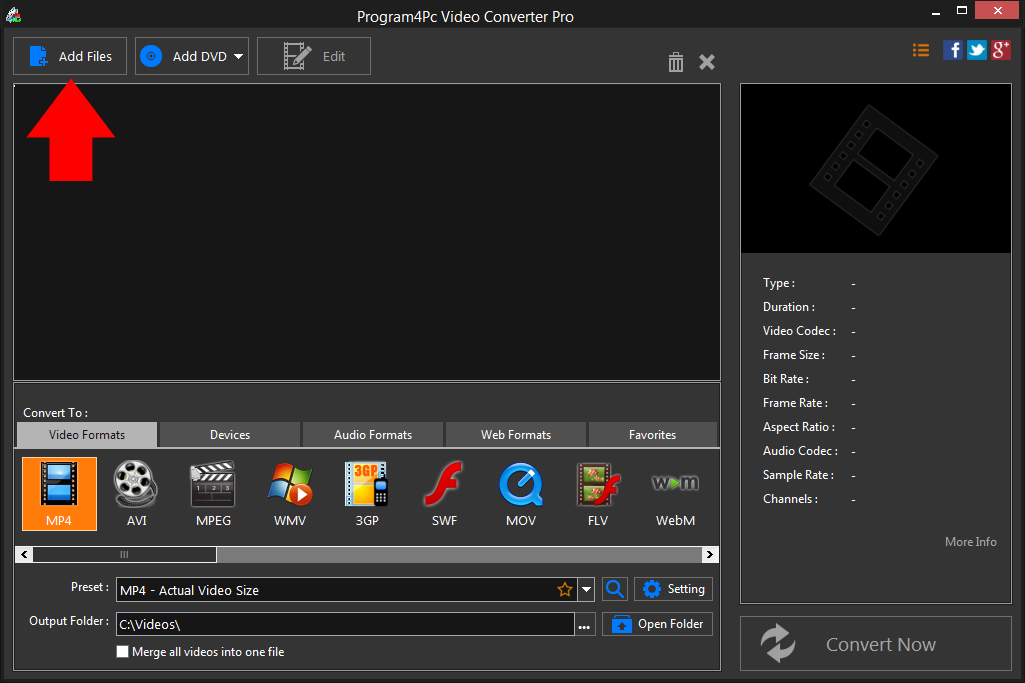
 Click Add Files and select the files you want to convert to MP4 format. If you want to work with video on DVD then you will need to hit the Add DVD button instead. You can add files in just about any input format, as Program4Pc Video Converter supports wide range of video formats. You can convert WEBM to MP4 format, as well as other formats and devices. Whichever file format you want to work with, Program4Pc software will do the job perfectly.
 Step 3: Choose MP4 as the Output Format and Adjust Settings
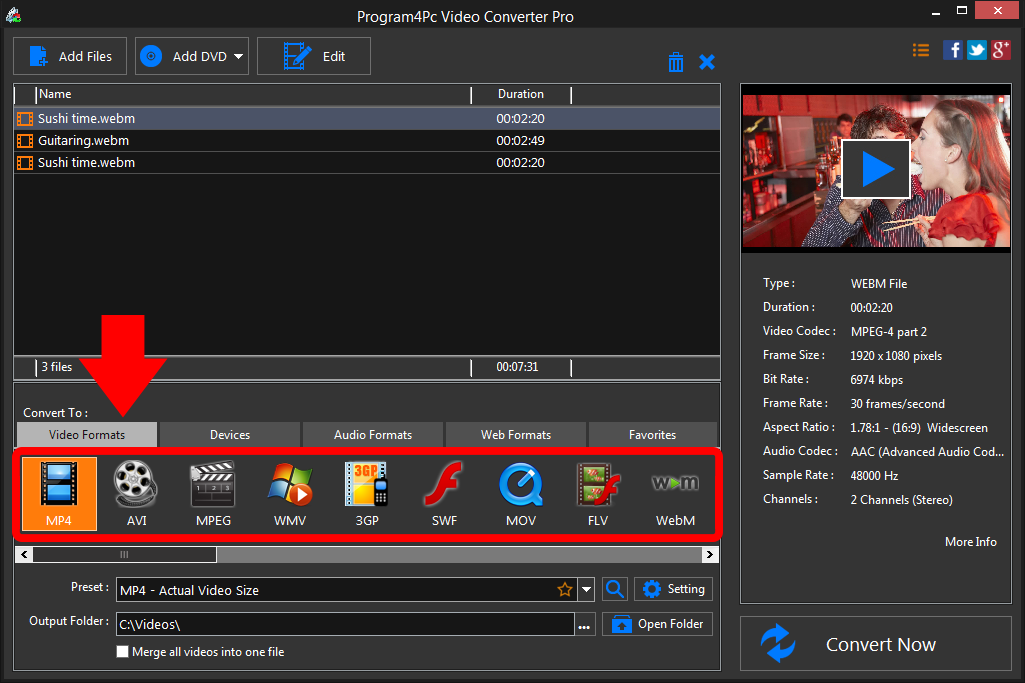
Go to the output section of program and find the MP4 video format. Click on Preset option to expand it and select the preset that best suits your needs.If you ever need to convert your MP4 videos to watch on your iPhone or another mobile device, Program4Pc Video Converter can help you for that as well. Just click on Devices tab for available devices and locate your device's brand and model to find a preset that's 100% designed for your particular device.
Step 4: Convert Video to MP4
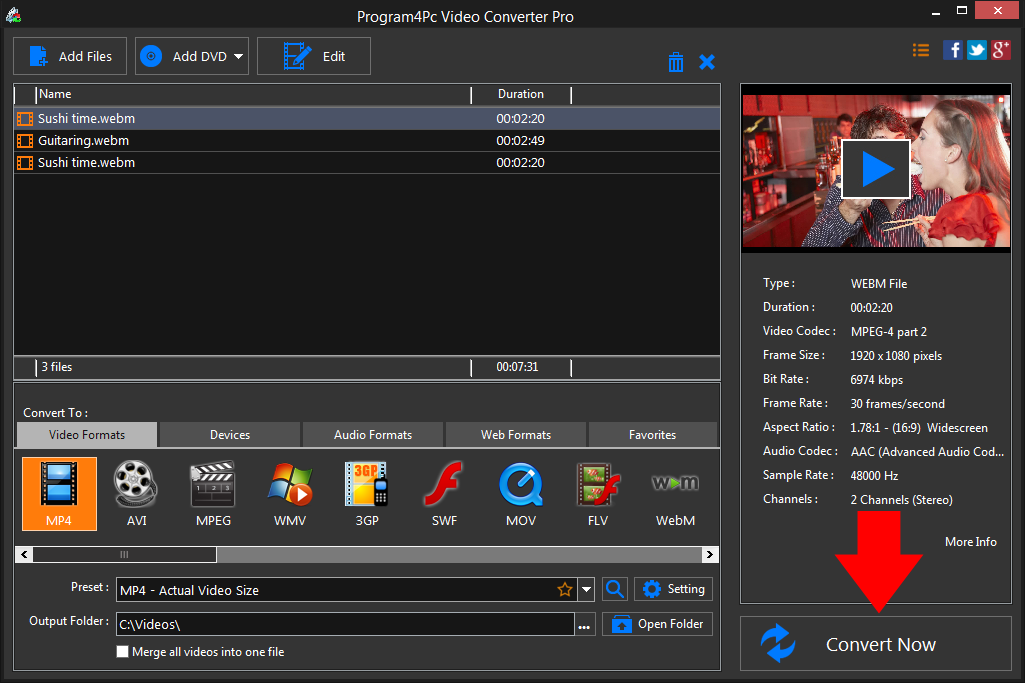
Choose the folder in which you want to place the converted files in the Output Folder line and click Convert Now to start processing. It can take from one to several minutes, depending on the file size and the number of files you transfer.Program4Pc Video Converter creates the new file in the chosen format automatically. Once your video has been converted to MP4, the folder containing your newly converted video can be opened to see the result and enjoy videos.
That's it!
And that's all about using Program4Pc software for converting video from WEBM to any desired format! Now, anytime you want to convert WEBM video to MP4 video formats, just run Program4Pc Video Converter and follow these steps.
You should know that by using Program4Pc Video Converter you will also find a reverse way on how to convert MP4 to WEBM format.
Download Video Converter
And that's all about using Program4Pc software for converting video from WEBM to any desired format! Now, anytime you want to convert WEBM video to MP4 video formats, just run Program4Pc Video Converter and follow these steps.
You should know that by using Program4Pc Video Converter you will also find a reverse way on how to convert MP4 to WEBM format.
See what else Program4Pc Video Converter can do for you:
- Convert WEBM to AVI
- Convert WEBM to MPEG
- Convert WEBM to WMV
- Convert WEBM to 3GP
- Convert WEBM to SWF
- Convert WEBM to MOV
- Convert WEBM to FLV
- Convert WEBM to M2TS