 |    | |
Home > Online Help > Video Converter > DVD Converter
This tutorial explains how easily can convert your WEBM files to DVD format with just couple of clicks.
There is a simple solution for converting and playing DVD video formats: just download Program4Pc Video Converter, a convenient video conversion application for Windows, and change the format of your videos to DVD. See how easy it is with this step-by-step guide.
Step 1: Get Program4Pc's DVD Converter
Download Now
How to Convert WEBM to DVD
This tutorial explains how easily can convert your WEBM files to DVD format with just couple of clicks.
There is a simple solution for converting and playing DVD video formats: just download Program4Pc Video Converter, a convenient video conversion application for Windows, and change the format of your videos to DVD. See how easy it is with this step-by-step guide.
Step 1: Get Program4Pc's DVD Converter
Download Now





Step 2: Open WEBM Files You Wish to Convert

 Click Add Files to add the video or videos that you want to convert to DVD or any other format. With Program4Pc Video Converter you can convert your whole media (video) library by defining the parameters manually or automatically.
 Step 3: Choose a Preset for Your Videos
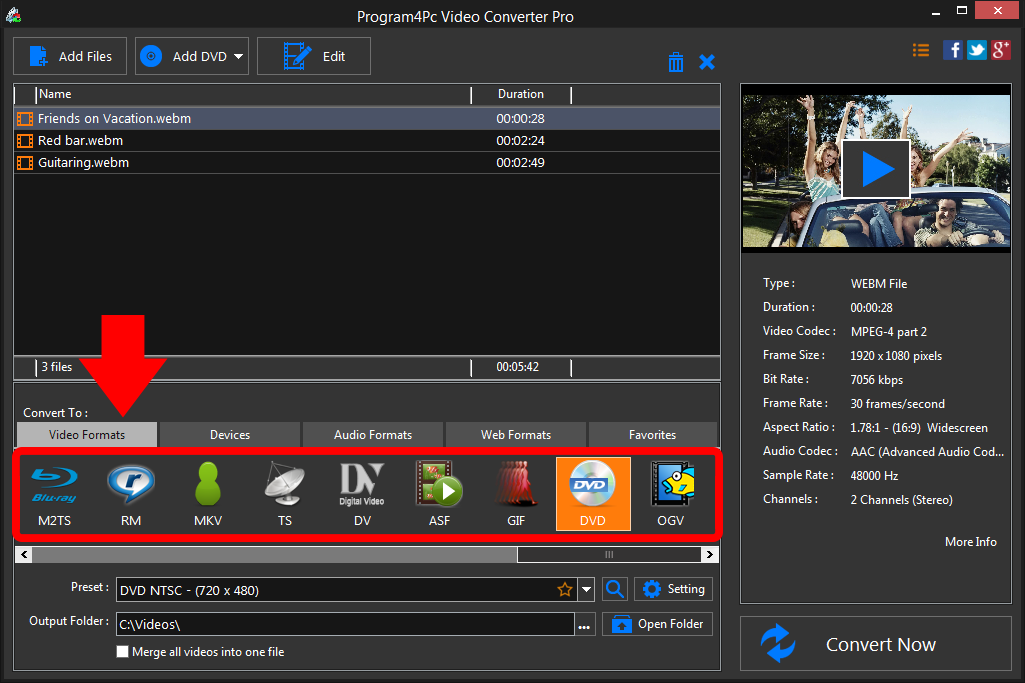
In Convert To list at the bottom of the program interface, select the appropriate video format or device preset. You can find the most popular format presets under Preset drop-down menu. If you want to extract sound from your video, choose the desired audio format from the Audio Formats tab. Step 4: Convert Video to DVD
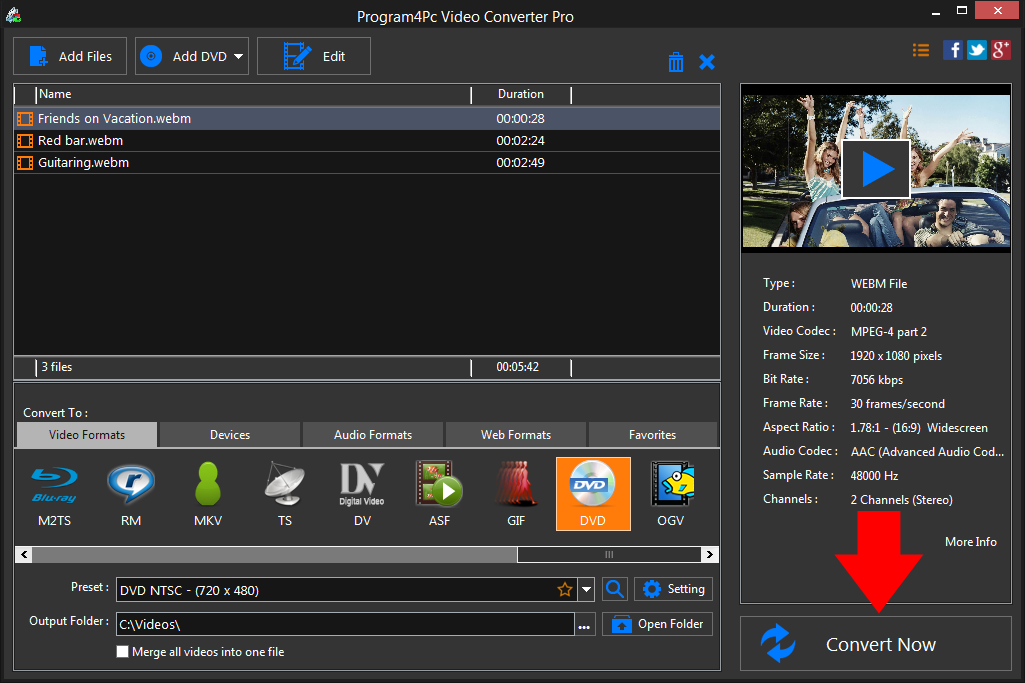
Choose the folder in which to place the converted files by either selecting the default folder in the Output Folder field or clicking the Browse button next to the output field. Now start the processing by clicking Convert Now. The conversion to DVD can take a while, depending on the size of your files and the number of files you are converting. When the program has finished the conversion, the video converter will ask you whether to open the output folder or you prefer to open it later. That's it!
It is simple as 1-2-3. Now you know how to convert any movie to DVD, so it must be time for a watching your favorite videos everywhere!
Download Video Converter
It is simple as 1-2-3. Now you know how to convert any movie to DVD, so it must be time for a watching your favorite videos everywhere!
See what else Program4Pc Video Converter can do for you:
- Convert WEBM to MP4
- Convert WEBM to AVI
- Convert WEBM to MPEG
- Convert WEBM to WMV
- Convert WEBM to 3GP
- Convert WEBM to SWF
- Convert WEBM to MOV
- Convert WEBM to FLV