 |    | |
Home > Online Help > Audio Editor > Using Filters on Audio
This tutorial explains how easily you may use filters on an audio file with just couple of clicks.
Do you need to modify and enhance audio file? DJ Audio Editor is the best solution for this task.
In this tutorial, we'll show you in detail how to use filters on audio file via our fast and simple Audio Editor. Only run the editor, choose your audio and select a ready-made filter - just follow the four simple steps below.
Step 1: Get Program4Pc's Audio Editor
Download Now
How to Use Filters on Audio File
This tutorial explains how easily you may use filters on an audio file with just couple of clicks.
Do you need to modify and enhance audio file? DJ Audio Editor is the best solution for this task.
In this tutorial, we'll show you in detail how to use filters on audio file via our fast and simple Audio Editor. Only run the editor, choose your audio and select a ready-made filter - just follow the four simple steps below.
Step 1: Get Program4Pc's Audio Editor
Download Now





Step 2: Open an Audio You Wish to Use Filter On
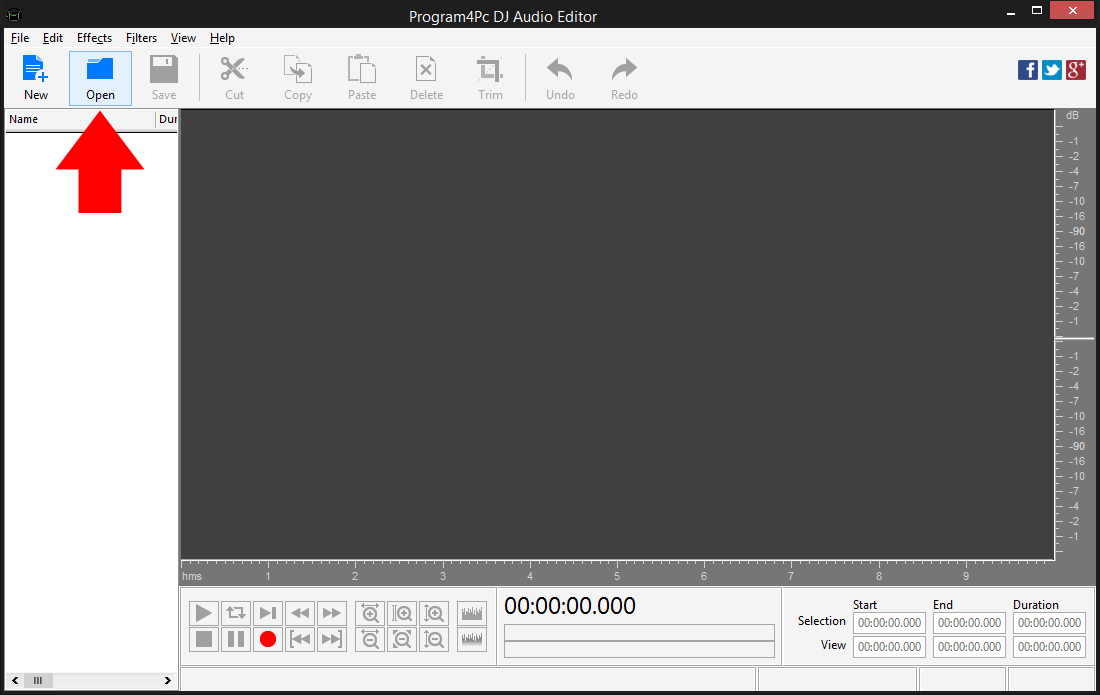
 Click the Open button in the upper left corner of the editor interface. Choose one or more files to open, or simply drag audio files and drop them into the audio converter program.
 You can use a filter to the whole file or modify just a part of the track. To select an area where you want to use an audio filter click within the Waveform Display and without releasing the left mouse button, move the cursor to the left or right to make a selection.
Step 3: Choose an Audio Filter to Apply

Click the Filters drop-down menu and select an appropriate filter to use. Note: If you do not select any portion of audio, the effects will be applied on entire audio file.
Step 4: Adjust the Properties of Audio Filter
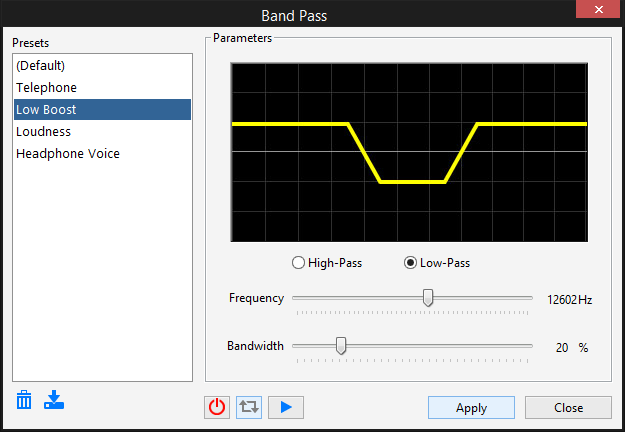
You can select one of the available presets from the list or define the parameters according to your needs. Use the Play button to make sure that the changes are correct. To quickly compare the processed audio with the original sound, turn on/off the filter preview and play again - you'll hear the sound without the filter.
Click Apply to save changes or Close to discard them.
Step 5: Save Your Edited Audio File
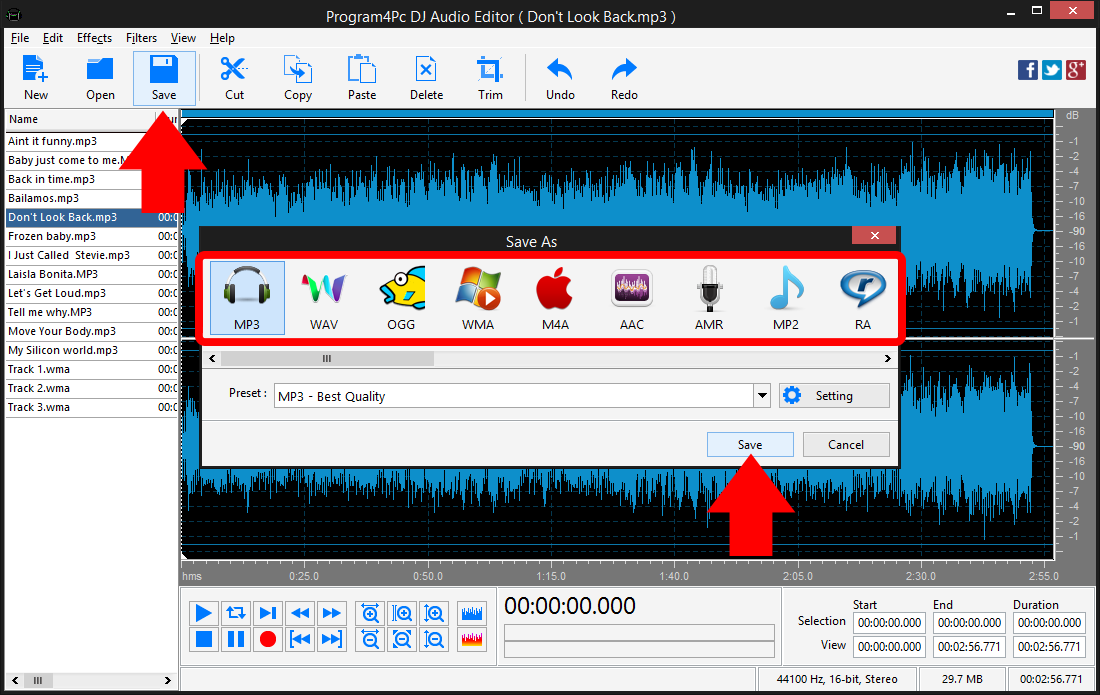
Click Save button and select the audio format from the list. Then click on Preset drop-down menu and choose one that best suits your needs. Click Save and choose the output folder. By default, edited audio files are saved to the specific folder but you may choose the new folder as well.
That's it!
That is the simplest way for using filter on audio file with our fast and easy Audio Editor! Now, whenever you want to use filter and modify audio, just run the program and repeat these steps.
Download Audio Editor
That is the simplest way for using filter on audio file with our fast and easy Audio Editor! Now, whenever you want to use filter and modify audio, just run the program and repeat these steps.
See what else Program4Pc Audio Editor can do for you:
- Edit audio file
- Trim audio file
- Merge audio files
- Edit audio CD tracks
- Apply effects on audio file
- Record audio
- Create ringtone for iPhone
- Edit audio tag