 |    | |
Home > Online Help > Audio Editor > Audio Recorder
This tutorial explains how easily you may record audio with just couple of clicks.
If you need to record music or any other sounds then DJ Audio Editor will help you perform this task easily.
This multifunctional software will help you to not only record audio but also edit, manipulate and enhance any audio files! Download this handy application for Windows for free and see for yourself – audio recording is easy.
Step 1: Install Program4Pc DJ Audio Editor
Download Now
How to Record Audio
This tutorial explains how easily you may record audio with just couple of clicks.
If you need to record music or any other sounds then DJ Audio Editor will help you perform this task easily.
This multifunctional software will help you to not only record audio but also edit, manipulate and enhance any audio files! Download this handy application for Windows for free and see for yourself – audio recording is easy.
Step 1: Install Program4Pc DJ Audio Editor
Download Now





Step 2: Launch Recorder Preferences
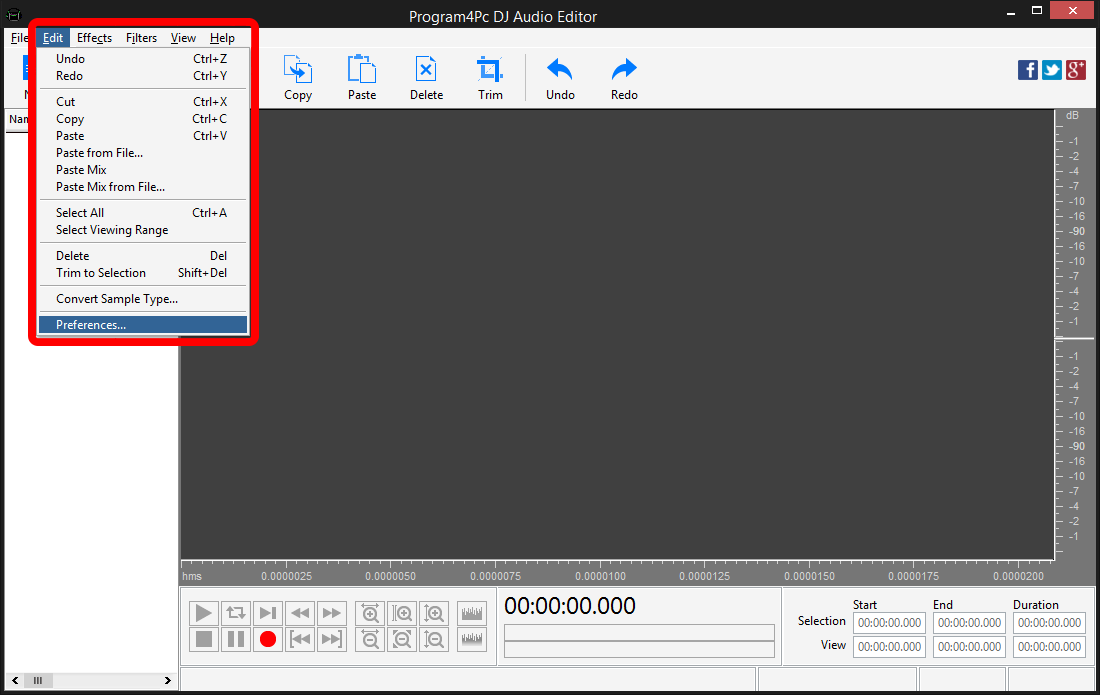
 Launch Program4Pc Audio Editor and click the Edit drop-down menu in the upper left corner of the editor interface and click Preferences.
 Step 3: Select Sound Card and Define Recording Settings
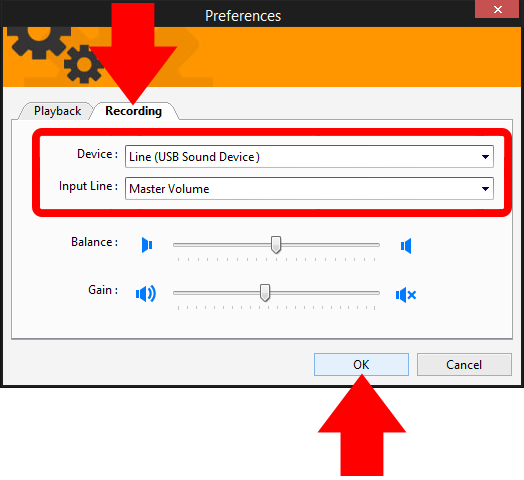
In the opening windows, go to Recording tab and select your proper sound card from available devices (in Device drop-down menu) and also the recording channel from Input Line section. Modify balance and volume if necessary and click the OK button. Step 4: Define Audio File Settings
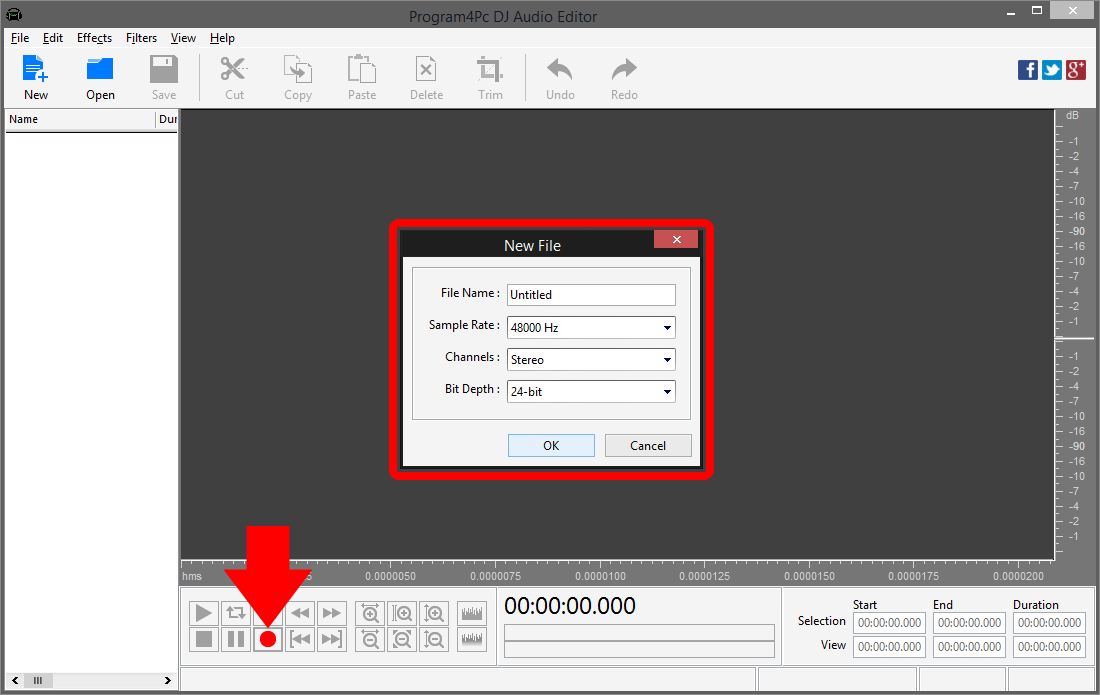
Now all recording settings are done, simply click the Record button in the lower left corner of the editor interface, in the opening window put your desire file name, define Sample Rate, Audio Channels and Bit Depth, then click the OK button to start recording audio. Step 5: Edit and Save Recorded Audio
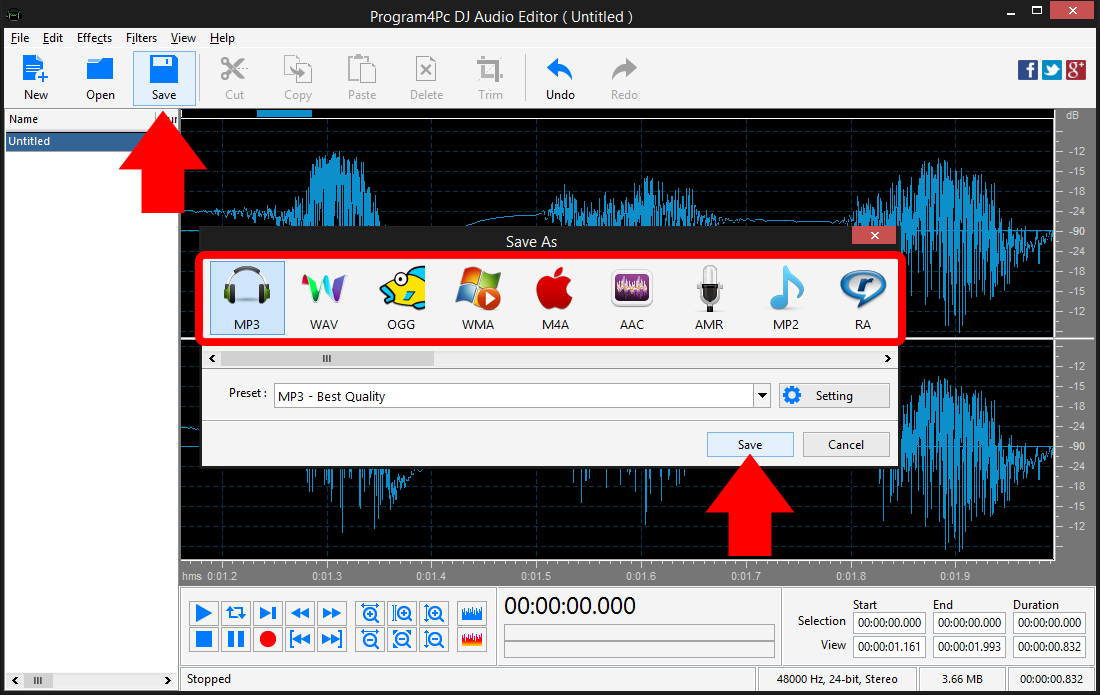
Recorded audio is shown in Waveform Display and ready to edit, manipulate or enhance (if necessary), after you are done with editing, click the Save button and select the audio format from the list. Click on Preset drop-down menu to expand the preset list and choose one that best suits your needs. At the end click Save and choose the folder in which you want to place the edited audio file.
That's it!
And that's all about using Program4Pc software for recording audio from any input channels! Now, anytime you want to record audio, just run DJ Audio Editor and follow these steps.
Download Audio Editor
And that's all about using Program4Pc software for recording audio from any input channels! Now, anytime you want to record audio, just run DJ Audio Editor and follow these steps.
See what else Program4Pc Audio Editor can do for you:
- Edit audio file
- Trim audio file
- Merge audio files
- Edit audio CD tracks
- Apply effects on audio file
- Use filters on audio file
- Create ringtone for iPhone
- Edit audio tag