 |    | |
Home > Online Help > Audio Editor > Merge Audio
This tutorial explains how easily you can merge several audio files with just couple of clicks.
If you want to merge a bunch of audio tracks into one file and enjoy your audio collections in a single shot, DJ Audio Editor is your best option. Even if audio files are of different formats they can be merged and converted to a single-unified audio file.
Follow these easy steps to get one output track of the required format.
Step 1: Download and Install DJ Audio Editor
Download Now
How to Merge Audio Files
This tutorial explains how easily you can merge several audio files with just couple of clicks.
If you want to merge a bunch of audio tracks into one file and enjoy your audio collections in a single shot, DJ Audio Editor is your best option. Even if audio files are of different formats they can be merged and converted to a single-unified audio file.
Follow these easy steps to get one output track of the required format.
Step 1: Download and Install DJ Audio Editor
Download Now





Step 2: Choose Audio File You Want to Join
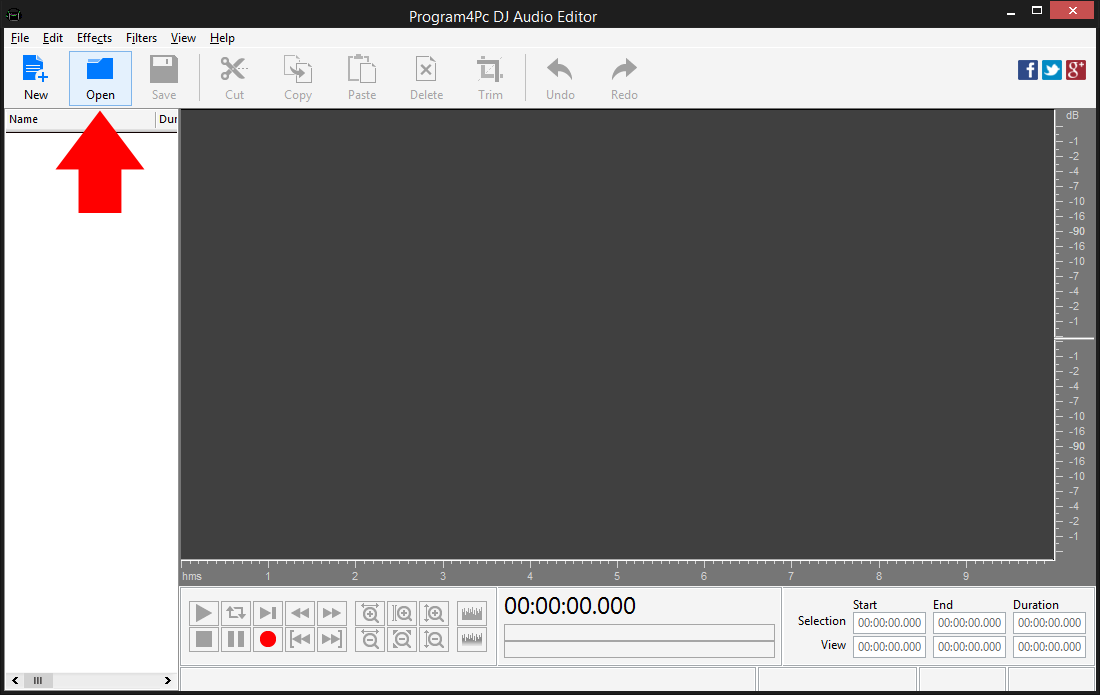
 Run Program4Pc Audio Editor and click the Open button to add the first audio file you intend to merge and it will appear in the list of source files. Or just drag and drop your audio file into the program.
 Step 3: Merge All Audios into One File
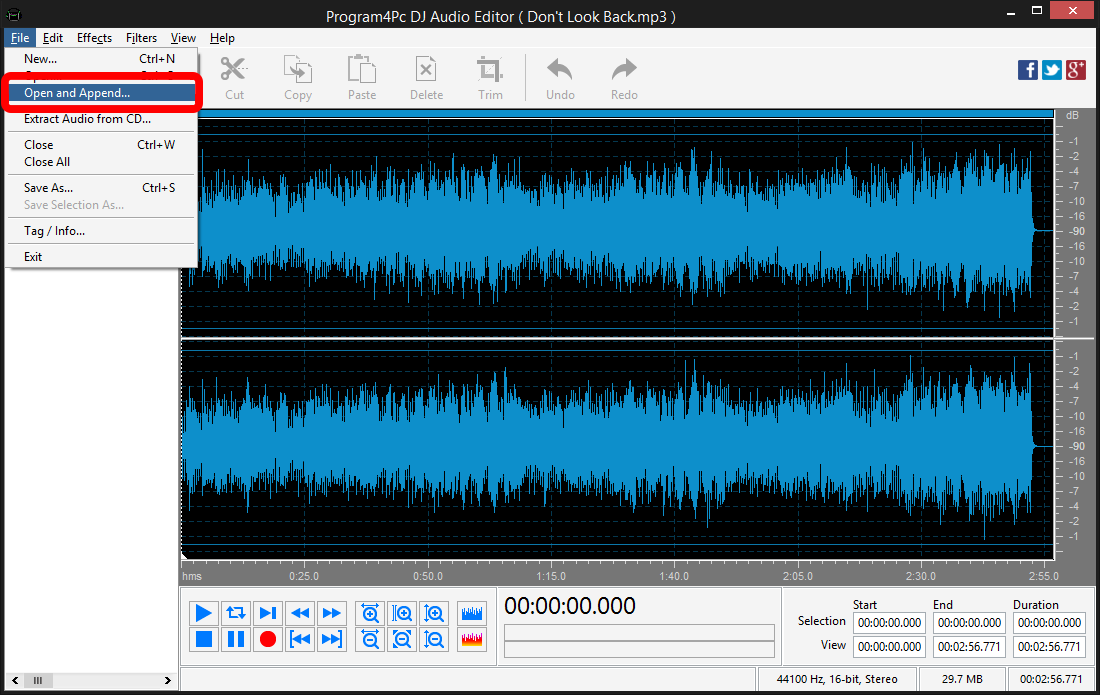
To add the second file to the first track click the Open and Append under the File drop-down menu. In the opened window, browse for the second audio file you like to merge and it will be added to the end of the first file. In the same way add other files that you need to have in one audio file.
Note: To delete any moments of silence in the resulting track use the Delete Silence button placed at the Filters menu.
Step 4: Choose Output Audio Format and Save It
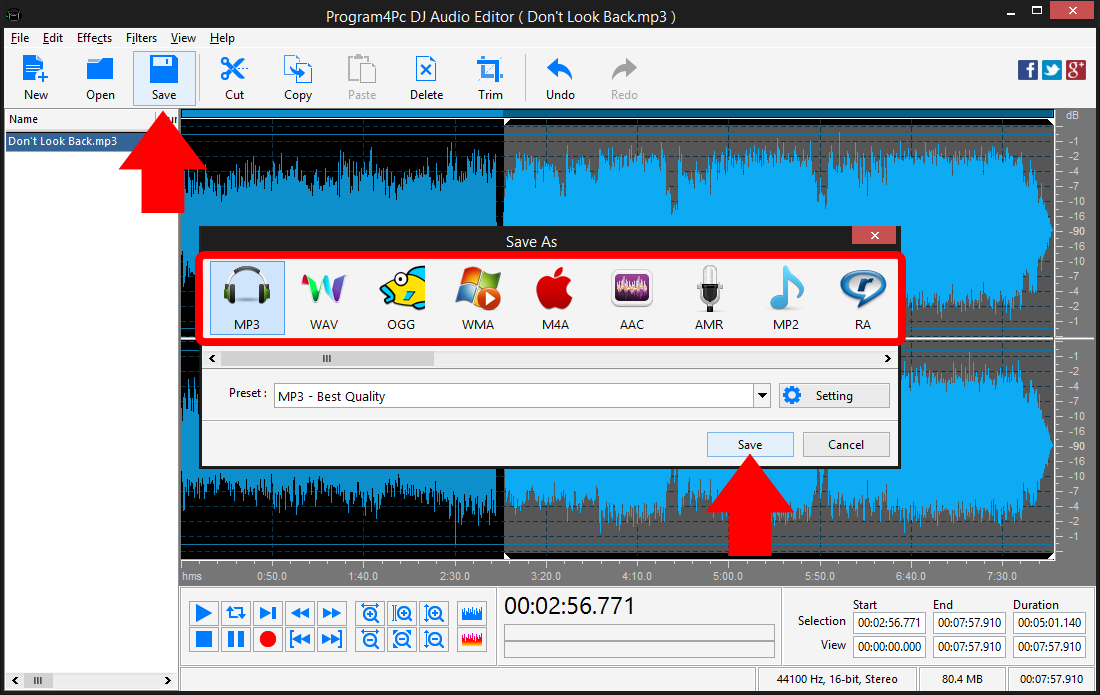
Click Save button and select the audio format from the list. You can choose any audio format, including MP3, WAV, OGG, WMA, M4A, AAC and etc. then click on Preset drop-down menu to expand the preset list and choose one that best suits your needs. Click the Setting button to manually adjust the sample rate, bit rate, channels and size if you wish. Finally click Save and choose the folder in which you want to place the merged audio file.
That's it!
Now when you have one audio file, which contains all the tracks you needed, you can proceed editing and enjoy various filters and effects that DJ Audio Editor offers you. Also may listen to all your favorite tracks in a single and continues file everywhere.
Download Audio Editor
Now when you have one audio file, which contains all the tracks you needed, you can proceed editing and enjoy various filters and effects that DJ Audio Editor offers you. Also may listen to all your favorite tracks in a single and continues file everywhere.
See what else Program4Pc Audio Editor can do for you:
- Edit audio file
- Trim audio file
- Edit audio CD tracks
- Apply effects on audio file
- Use filters on audio file
- Record audio
- Create ringtone for iPhone
- Edit audio tag
| Information | Support | Popular Titles | Connect with us    |
 Secured Shopping |  Customer Services |  30 Days Money Back |  Satisfied Customers |
About Program4Pc | Home | Products | Download | Buy Now | Affiliates | Support | Privacy Policy | Site Map
Copyright © Program4Pc Inc. All Rights Reserved.