 |    | |
Home > Online Help > Audio Editor > Editing Audio CD Tracks
This tutorial explains how easily you may edit audio CD tracks with just couple of clicks.
We do have Audio CDs, buy them from time to time, copy our beloved songs and listen it in our car, home and even in picnics. Sometimes we need to edit and enhance audio tracks specially when they have low quality or some of them are not our favorites and should be removed, then a good audio editor comes in need to give us the option to edit audio CD tracks. And DJ Audio Editor is the one to do this in just couple of clicks.
Simply follow simple steps and learn how to edit audio CD tracks.
Step 1: Download DJ Audio Converter
Download Now
How to Edit Audio CD Tracks
This tutorial explains how easily you may edit audio CD tracks with just couple of clicks.
We do have Audio CDs, buy them from time to time, copy our beloved songs and listen it in our car, home and even in picnics. Sometimes we need to edit and enhance audio tracks specially when they have low quality or some of them are not our favorites and should be removed, then a good audio editor comes in need to give us the option to edit audio CD tracks. And DJ Audio Editor is the one to do this in just couple of clicks.
Simply follow simple steps and learn how to edit audio CD tracks.
Step 1: Download DJ Audio Converter
Download Now





Step 2: Open Audio CD Tracks

 Open Program4Pc Audio Editor and click the Extract Audio from CD under the File drop-down menu in the upper left corner of the editor interface.
 Step 3: Extract Audio CD Tracks
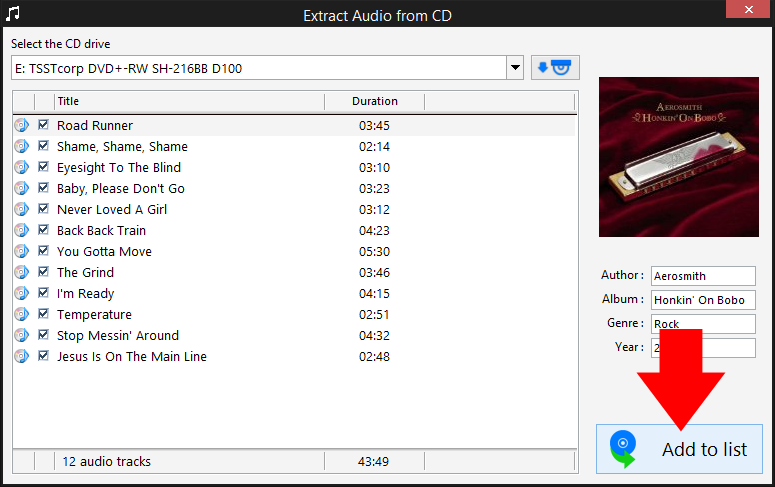
The new opened program will automatically detects your Audio CD and lists all available tracks. You may select your desired ones or simply select all and click Add to list. The program exports all selected audio tracks into the main audio editor program.
Step 4: Edit Audio Tracks
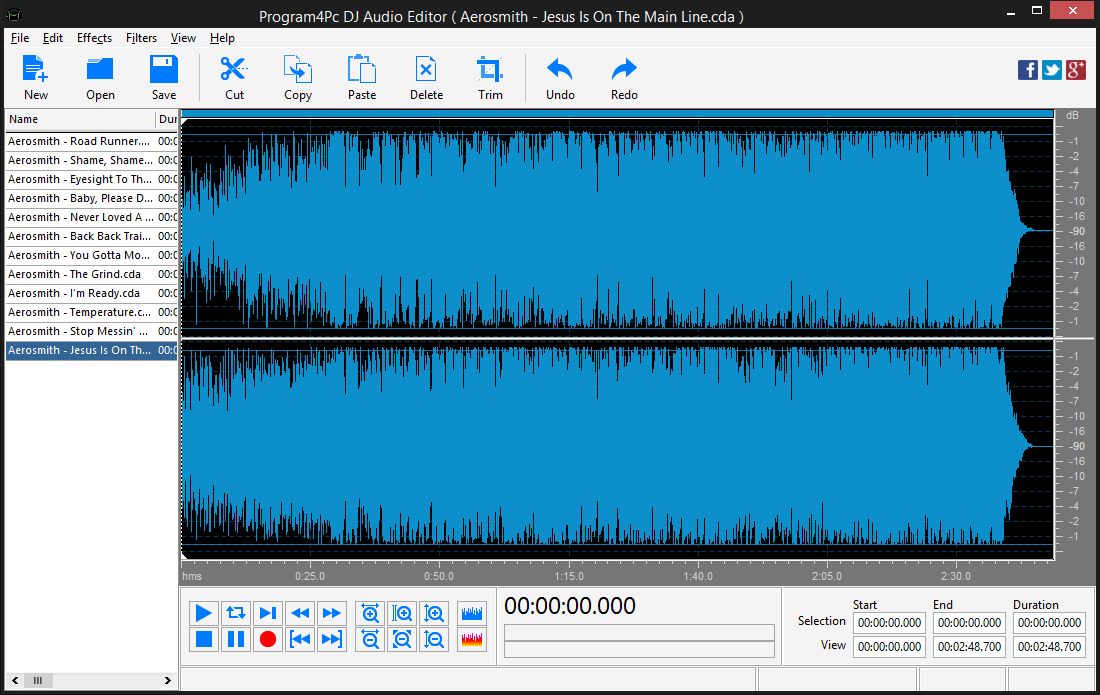
Now all audio tracks are imported into the program and ready to work on, simply use them as audio file and edit, enhance and manipulate them the way you like. Select a desired portion and trim the audio, apply filters and effect, customize it based on your mood. Your options to work on audio files are limitless.
Step 5: Select Output Format and Save
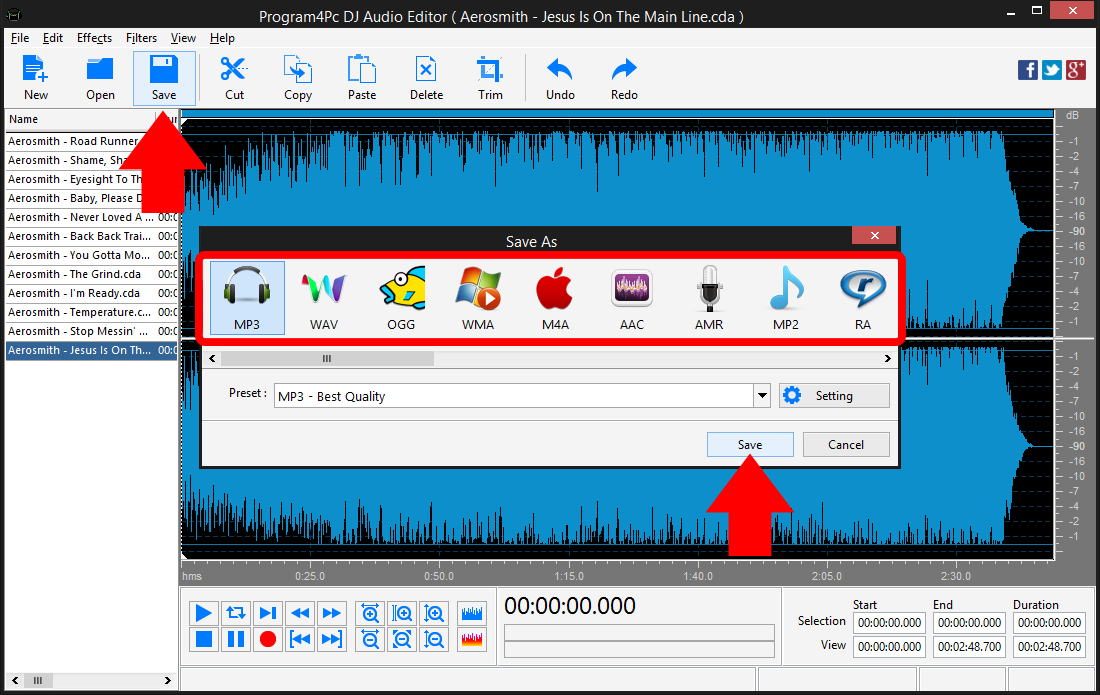
Click Save button and select the audio format from the list. You can choose any audio format, including MP3, WAV, OGG, WMA, M4A, AAC and etc. then click on Preset drop-down menu to expand the preset list and choose one that best suits your needs. At the end click Save and choose the folder in which you want to place the edited audio file.
That's it!
That was very easy and now you know how to use Program4Pc Audio Editor and how to edit audio CD tracks.
Download Audio Editor
That was very easy and now you know how to use Program4Pc Audio Editor and how to edit audio CD tracks.
See what else Program4Pc Audio Editor can do for you:
- Edit audio file
- Trim audio file
- Merge audio files
- Apply effects on audio file
- Use filters on audio file
- Record audio
- Create ringtone for iPhone
- Edit audio tag