 |    | |
Home > Online Help > Audio Converter > Merge Audio
This tutorial explains how easily you can merge several audio files with just couple of clicks.
If you want to enjoy your audio collections in a single shot, then convert them to a single-unified audio format and listen to it everywhere by merging several of them together.
Follow these simple and easy steps to see how Program4Pc Audio Converter will merge your audios together.
Step 1: Install Program4Pc Audio Converter
Download Now
How to Merge Audio Files
This tutorial explains how easily you can merge several audio files with just couple of clicks.
If you want to enjoy your audio collections in a single shot, then convert them to a single-unified audio format and listen to it everywhere by merging several of them together.
Follow these simple and easy steps to see how Program4Pc Audio Converter will merge your audios together.
Step 1: Install Program4Pc Audio Converter
Download Now





Step 2: Add Audios to the Program
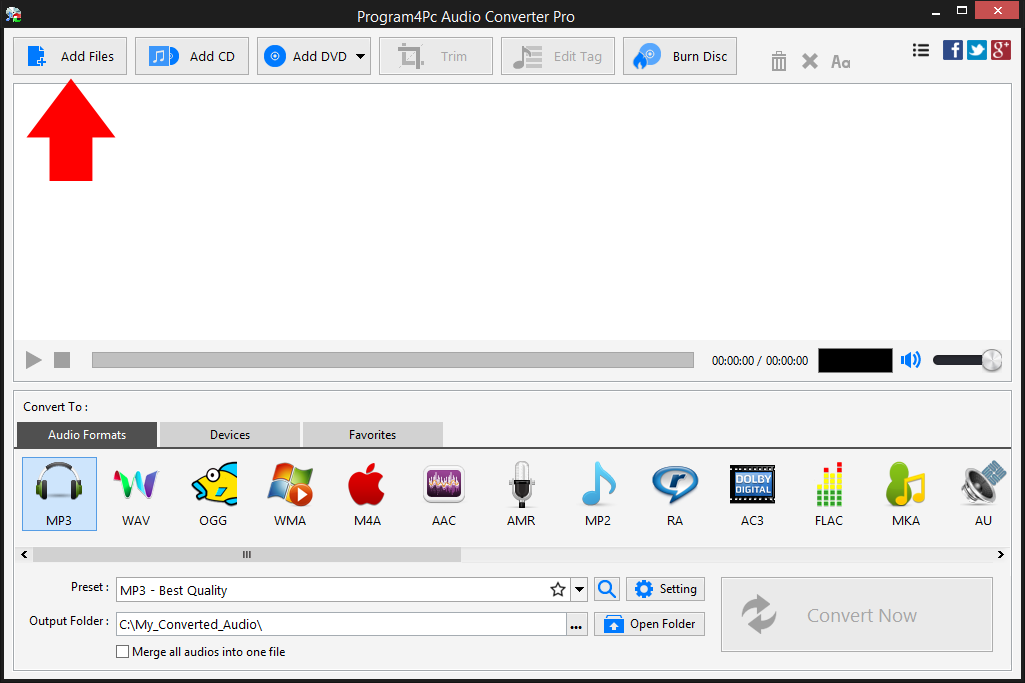
 Launch Program4Pc Audio Converter and click the Add Files button to add audio files to the program. You may also drag audio files and drop them into the program.
 To rip and convert audio CD, click the Add CD and for converting DVD's audio click the Add DVD button.
Step 3: Specify the Output Audio File Format
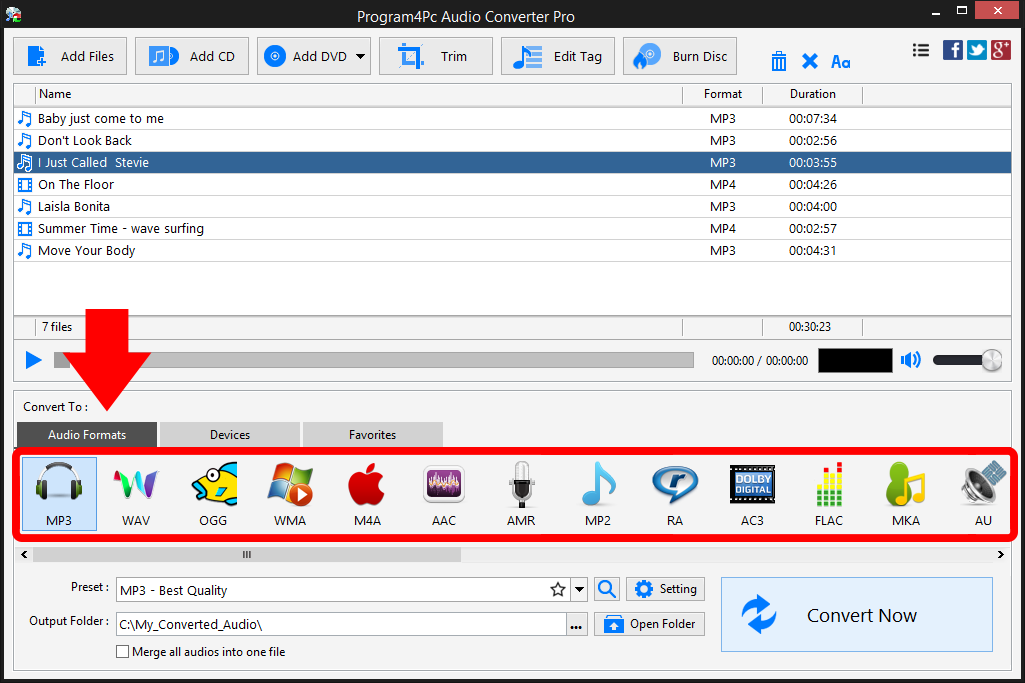
In Convert To section choose the desired audio format from the list. You can choose any audio or music format, including MP3, WAV, OGG, WMA, AMR and etc. But if you want to convert audio for a particular music player device, select Devices tab to compatible presets for devices and choose your specific device model. Step 4: Merge All Audios into One File
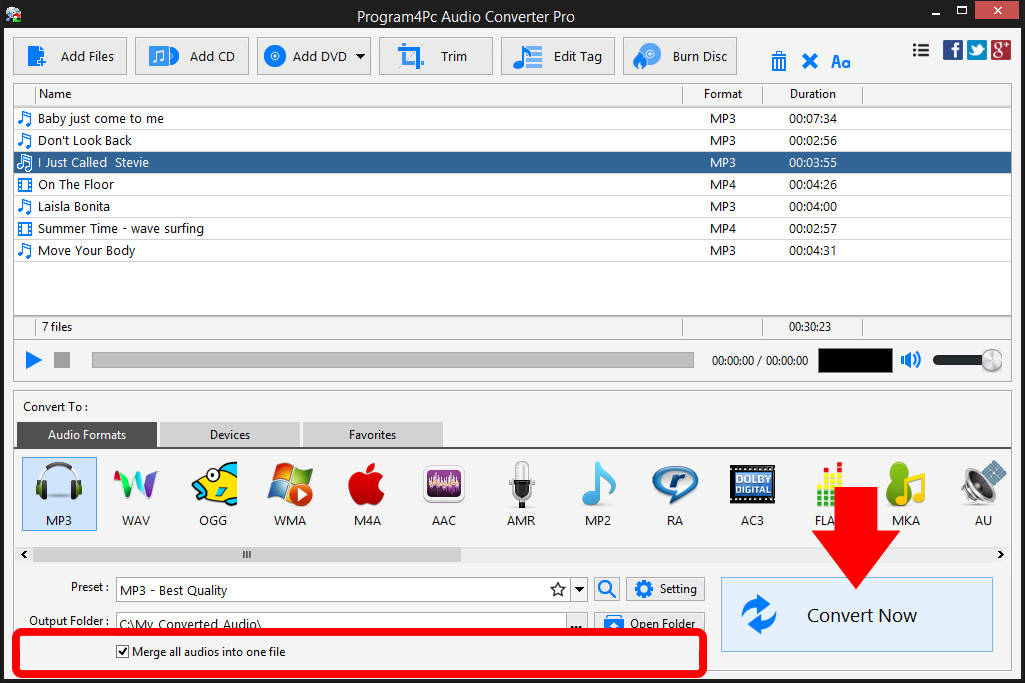
At the bottom of the audio converter interface, check the Merge all audios into one file box, then choose the folder in which you want to place the converted files in the Output Folder field. When you are done click Convert Now to start processing. It can take from one to several minutes, depending on the file size and the number of files you merge.
Program4Pc Audio Converter merges all your videos and creates the new file in the chosen format automatically.
That's it!
Now that you're finished, and that's all about using Program4Pc Audio Converter to merge audio files. Using this intuitive software, you can easily merge your favorite audios into a single file and enjoy it everywhere on PC, cell phone or tablet within minutes.
Download Audio Converter
Now that you're finished, and that's all about using Program4Pc Audio Converter to merge audio files. Using this intuitive software, you can easily merge your favorite audios into a single file and enjoy it everywhere on PC, cell phone or tablet within minutes.
See what else Program4Pc Audio Converter Pro can do for you:
- Convert audio file
- Rip audio CD
- Convert DVD's audio
- Trim audio file
- Create and burn an audio CD
- Create and burn MP3 CD / DVD
- Convert video to audio
- Create ringtone for iPhone
- Edit audio tags