 |    | |
Home > Online Help > Audio Converter > Video to Audio Converter
This tutorial explains how easily you may convert video to audio with just couple of clicks.
Would you like to listen to your favorite video clip while driving or sitting at home? Then need to convert video to audio by extracting its audio and save to a regular music file playable everywhere.
In this tutorial, we will show you how to use our Audio Converter to convert video file to audio quick and easy.
Just follow the steps below to see how easy video conversion to audio can be. Just run the program, open a video, select a predefined setting, and click Convert Now.
Step 1: Download and Install the Audio Converter
Download Now
How to Convert Video to Audio
This tutorial explains how easily you may convert video to audio with just couple of clicks.
Would you like to listen to your favorite video clip while driving or sitting at home? Then need to convert video to audio by extracting its audio and save to a regular music file playable everywhere.
In this tutorial, we will show you how to use our Audio Converter to convert video file to audio quick and easy.
Just follow the steps below to see how easy video conversion to audio can be. Just run the program, open a video, select a predefined setting, and click Convert Now.
Step 1: Download and Install the Audio Converter
Download Now





Step 2: Open Video Files You Wish to Convert
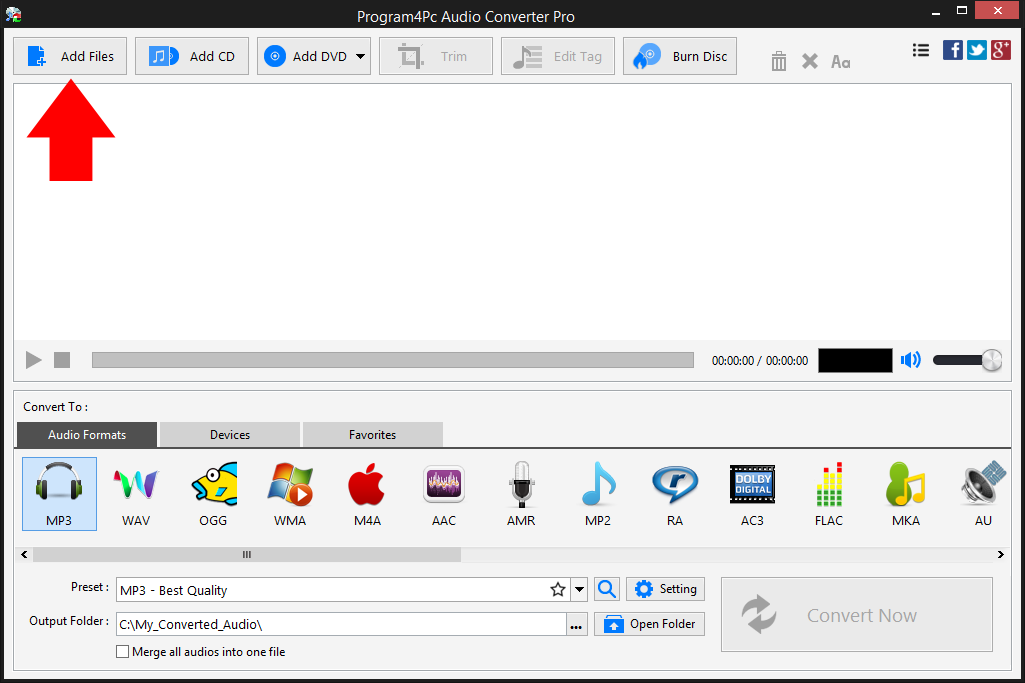
 Click Add Files to add the video or videos such as AVI, MP4, MOV, WEBM, etc. for converting to audio. With Program4Pc Audio Converter you can convert your whole media (video) library to any audio format by defining the parameters manually or automatically.
 If you need to convert DVD to audio, click the Add DVD button instead.
Step 3: Specify the Output File Format
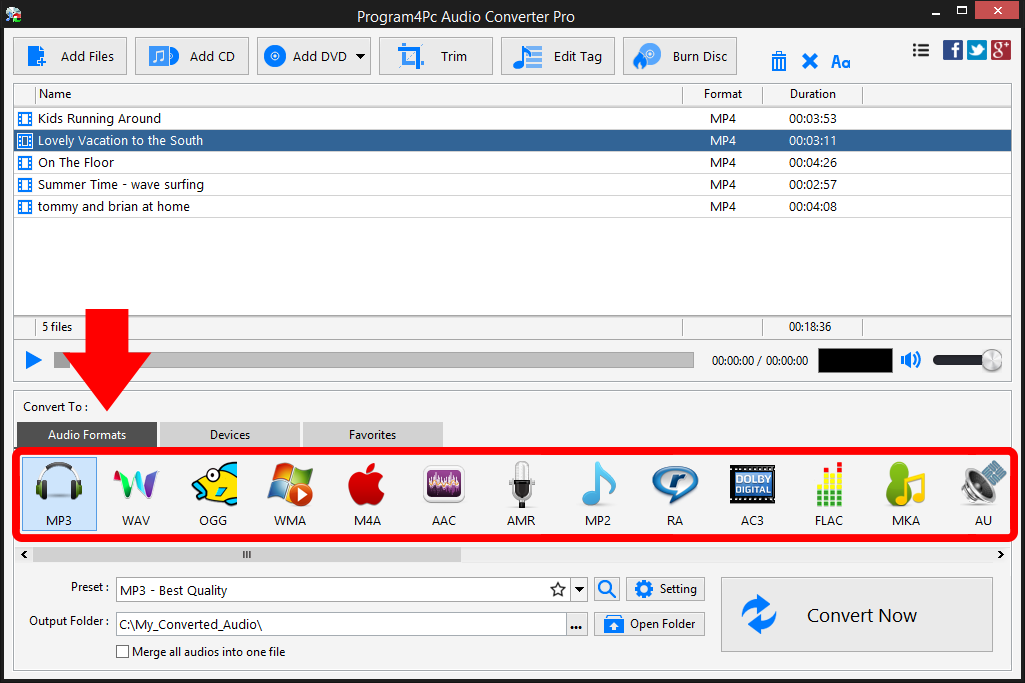
From Convert To section of program, select your desire audio file format. If you ever need to convert your video to audio and listen via iPhone or another portable player, Program4Pc Audio Converter can help you for that as well. Just click on Devices tab for available devices and locate your device's brand and model to find a preset that's 100% designed for your particular device. Step 4: Convert Your Video to Audio
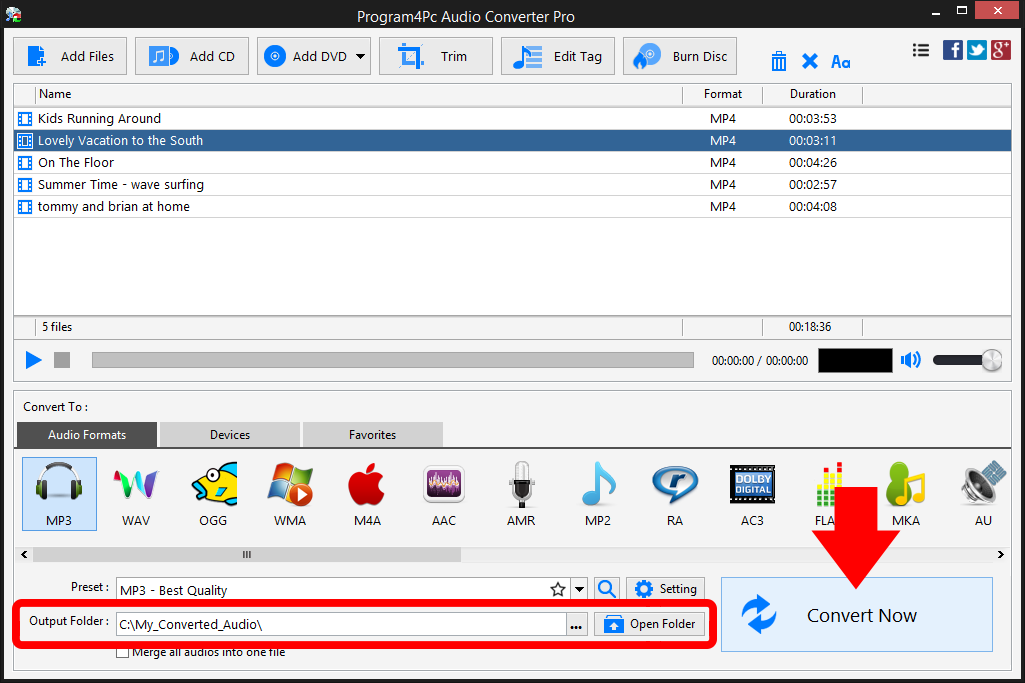
Before starting the conversion, check the Output Folder field. By default, Program4Pc Audio Converter will save your newly created audio files to the specific directory, but you can choose a different folder by clicking Browse button next to this field.When you are ready, hit Convert Now and the program will start extracting audio from video and save to the format of your choice.
That's it!
It is very easy, now you know how to convert any video to audio in just couple of clicks without quality lose.
Download Audio Converter
It is very easy, now you know how to convert any video to audio in just couple of clicks without quality lose.
See what else Program4Pc Audio Converter Pro can do for you:
- Convert audio file
- Rip audio CD
- Convert DVD's audio
- Trim audio file
- Merge audio files
- Create and burn an audio CD
- Create and burn MP3 CD / DVD
- Create ringtone for iPhone
- Edit audio tags