 |    | |
Home > Online Help > Audio Converter > Audio CD Burner
This tutorial explains how easily you may create and burn an audio CD with just couple of clicks.
Do you like to listen to your favorite songs in your car or at home via stereo CD player? Then need an audio CD burner because regular MP3 or WMA files cannot be played in CD players, but nothing to be worried about, our Audio Converter software will do it for you. It can create and burn audio CD which is compatible and playable on every CD players.
Simply follow the below steps to create your own audio CD.
Step 1: Download and Install Program4Pc Audio Converter
Download Now
How to Create and Burn an Audio CD
This tutorial explains how easily you may create and burn an audio CD with just couple of clicks.
Do you like to listen to your favorite songs in your car or at home via stereo CD player? Then need an audio CD burner because regular MP3 or WMA files cannot be played in CD players, but nothing to be worried about, our Audio Converter software will do it for you. It can create and burn audio CD which is compatible and playable on every CD players.
Simply follow the below steps to create your own audio CD.
Step 1: Download and Install Program4Pc Audio Converter
Download Now





Step 2: Run the Audio Converter and Open CD Burner

 Open Program4Pc Audio Converter and click the Burn Disc button in the top of the program interface.
 Step 3: Select and Load Audio CD Burner

In new window, click on the first button Create a standard audio CD that will play on all Audio CD players. Step 4: Add Files and Create an Audio CD
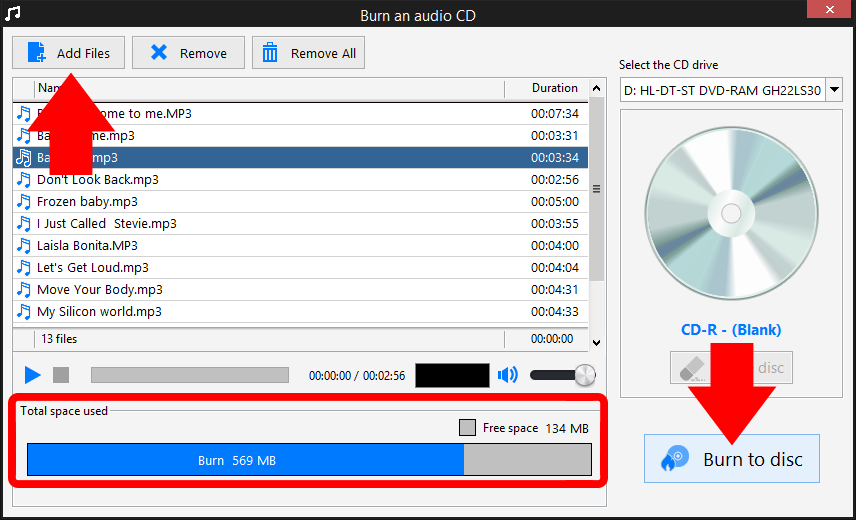
Insert a blank disc (CD-R or CD-RW) in the drive, if your disc has already some data then can be erased easily (if necessary). Click the Add Files button in the upper left corner of the CD Burner interface and select the files you want to burn.
The program will calculate and show the total space used and free space available on disc in the lower section of application interface, so you can configure the number of files to be burned on disc. When you are done, click the Burn to disc button to start the process.
Audio Converter will create an audio CD which is 100% compatible and playable on every CD players.
That's it!
That was very easy and now you know how to use Program4Pc Audio Converter to burn and create audio CD.
Our converter is also a fast way to extract music from audio CD and convert all CD tracks to audio files separately and then convert them to any other audio formats.
Download Audio Converter
That was very easy and now you know how to use Program4Pc Audio Converter to burn and create audio CD.
Our converter is also a fast way to extract music from audio CD and convert all CD tracks to audio files separately and then convert them to any other audio formats.
See what else Program4Pc Audio Converter Pro can do for you:
- Convert audio file
- Rip audio CD
- Convert DVD's audio
- Trim audio file
- Merge audio files
- Create and burn MP3 CD / DVD
- Convert video to audio
- Create ringtone for iPhone
- Edit audio tags